Garage Partners
How to Register Your Garage on Repair It Partner: Step-by-Step Guide
Learn how to register your garage on Repair It Partner, complete your business profile, set up your service menu and manage incoming service orders.

How to Register Your Garage on Repair It Partner: Step-by-Step Guide
Running a garage involves more than repairing vehicles. Managing service enquiries, maintaining customer information, setting prices and handling bookings are all part of running a workshop.
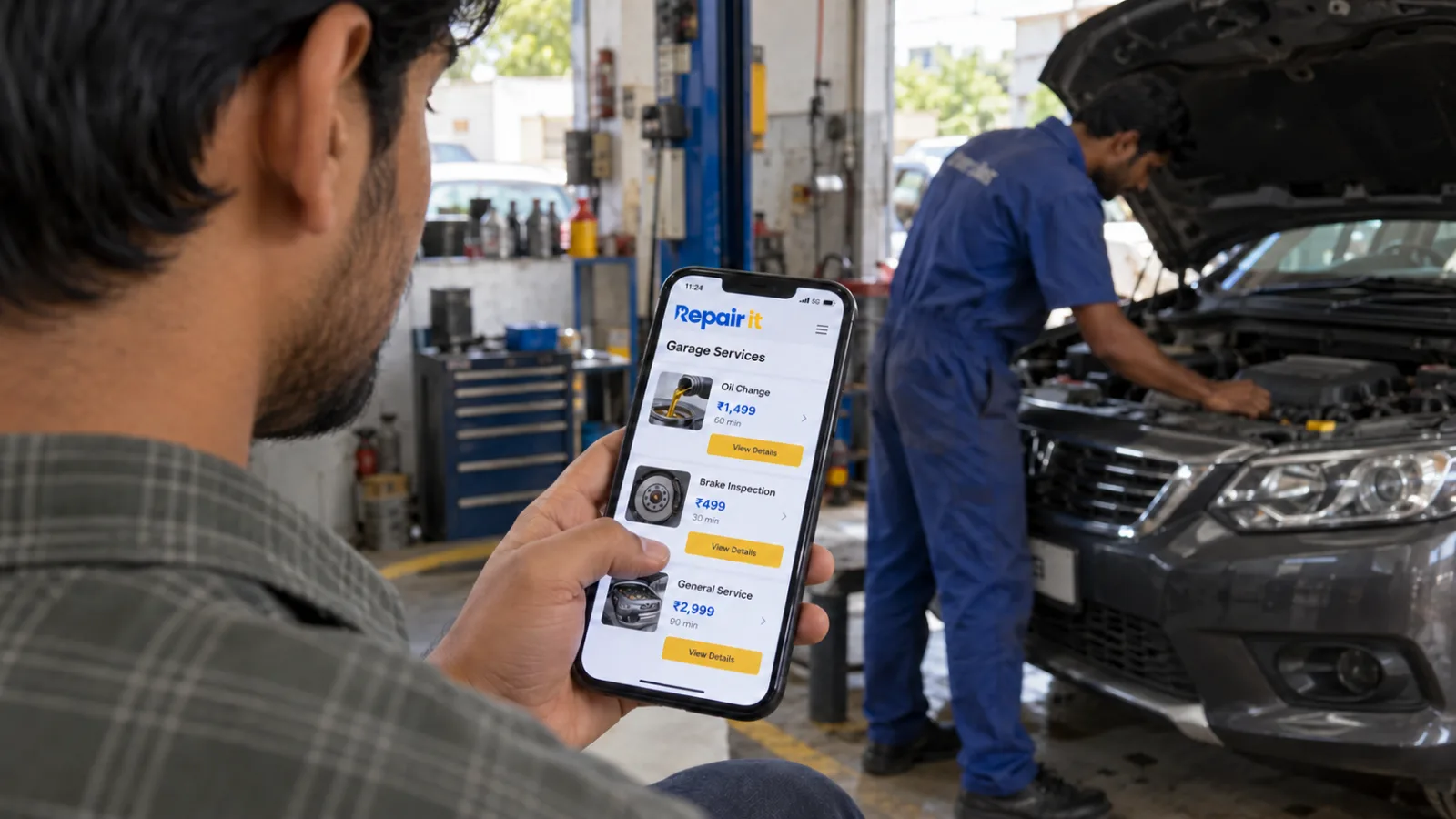
Repair It Partner gives garage owners a digital platform to create their garage profile, list services and pricing, and receive vehicle service bookings. Getting started involves registering your garage, completing the necessary details and setting up your service menu.
Here is a step-by-step guide to getting started with the Repair It Partner app.
Repair It Partner gives garage owners a digital platform to create their garage profile, list services and pricing, and receive vehicle service bookings. Getting started involves registering your garage, completing the necessary details and setting up your service menu.
Here is a step-by-step guide to getting started with the Repair It Partner app.
Watch the Repair It Partner Registration Guide
https://youtu.be/C4yoh2TX0Zg?si=s-bm3hWLKkYkG2sr
Registration Guide
Step 1: Download the Repair It Partner AppStart by downloading the Repair It Partner app from the relevant app store.
Open the app to begin setting up your garage account. Make sure you are using the Partner app, which is designed for garage owners and vehicle service businesses.
Step 2: Register Your Garage
Begin the registration process by entering the required account and business information.
Select the relevant garage type and fill in the requested details to create your account. Providing accurate information helps establish your garage profile and prepares it for the remaining setup steps.
Step 3: Complete Your Business Details
Enter the information requested for your garage, including the relevant contact and business details.
Set your business timings so customers can understand when your garage operates. Review the information before proceeding to the next stage.
Step 4: Add Your Bank Details
The app provides a section for entering bank account information, including the account holder's name, account number and account type.
Complete these details when required. The walkthrough also shows an option to do this later, allowing you to return to the information if you choose to postpone it during registration.
Step 5: Set Up Your Garage's Service Menu
Your service menu helps customers understand the work your garage offers.
Use the app to customise the menu and select the relevant service checklist items. Depending on your garage's capabilities, these may include general servicing, battery checks, brake inspections, electrical checks and other vehicle maintenance services.
Choose services that accurately reflect your workshop's capabilities. Review the available items and organise your menu so customers can identify the services they need.
Step 6: Review the Activation Fee
The video walkthrough displays an annual activation fee of ₹999 on the activation screen.
Review the fee and the applicable activation details shown in the app before proceeding. Check the current terms presented during activation for the relevant vehicle category and garage account.
Step 7: Start Managing Incoming Orders
Once your garage is set up and activated, you can begin managing service orders received through the platform.
Review each incoming order and its service details before accepting it. The app walkthrough demonstrates the order acceptance process and the information available for an individual booking.
Step 8: Review Additional Work Before Proceeding
Sometimes a vehicle may require work beyond the services included in the original order.
Review the order details and use the app's additional-work process to record the relevant requirements. Make sure the customer has approved any additional work and its associated cost before proceeding.
Step 9: Complete the Order Through the App
Follow the order workflow to record and complete the service. The walkthrough demonstrates the final order-completion step through the app.
Keeping order information updated helps maintain a clear record of the work associated with each booking.
Take Your Garage Online with Repair It Partner
Setting up your garage on Repair It Partner gives your workshop a digital presence where customers can discover your services and make bookings. From creating your profile and configuring your service menu to reviewing incoming orders, the app brings important parts of the digital booking process into one place.
Watch the explainer video above while setting up your account, and follow each step to get your garage ready to use the Repair It Partner platform.
Ready to get started? Download the Repair It Partner app and begin setting up your garage.
Open the app to begin setting up your garage account. Make sure you are using the Partner app, which is designed for garage owners and vehicle service businesses.
Step 2: Register Your Garage
Begin the registration process by entering the required account and business information.
Select the relevant garage type and fill in the requested details to create your account. Providing accurate information helps establish your garage profile and prepares it for the remaining setup steps.
Step 3: Complete Your Business Details
Enter the information requested for your garage, including the relevant contact and business details.
Set your business timings so customers can understand when your garage operates. Review the information before proceeding to the next stage.
Step 4: Add Your Bank Details
The app provides a section for entering bank account information, including the account holder's name, account number and account type.
Complete these details when required. The walkthrough also shows an option to do this later, allowing you to return to the information if you choose to postpone it during registration.
Step 5: Set Up Your Garage's Service Menu
Your service menu helps customers understand the work your garage offers.
Use the app to customise the menu and select the relevant service checklist items. Depending on your garage's capabilities, these may include general servicing, battery checks, brake inspections, electrical checks and other vehicle maintenance services.
Choose services that accurately reflect your workshop's capabilities. Review the available items and organise your menu so customers can identify the services they need.
Step 6: Review the Activation Fee
The video walkthrough displays an annual activation fee of ₹999 on the activation screen.
Review the fee and the applicable activation details shown in the app before proceeding. Check the current terms presented during activation for the relevant vehicle category and garage account.
Step 7: Start Managing Incoming Orders
Once your garage is set up and activated, you can begin managing service orders received through the platform.
Review each incoming order and its service details before accepting it. The app walkthrough demonstrates the order acceptance process and the information available for an individual booking.
Step 8: Review Additional Work Before Proceeding
Sometimes a vehicle may require work beyond the services included in the original order.
Review the order details and use the app's additional-work process to record the relevant requirements. Make sure the customer has approved any additional work and its associated cost before proceeding.
Step 9: Complete the Order Through the App
Follow the order workflow to record and complete the service. The walkthrough demonstrates the final order-completion step through the app.
Keeping order information updated helps maintain a clear record of the work associated with each booking.
Take Your Garage Online with Repair It Partner
Setting up your garage on Repair It Partner gives your workshop a digital presence where customers can discover your services and make bookings. From creating your profile and configuring your service menu to reviewing incoming orders, the app brings important parts of the digital booking process into one place.
Watch the explainer video above while setting up your account, and follow each step to get your garage ready to use the Repair It Partner platform.
Ready to get started? Download the Repair It Partner app and begin setting up your garage.